1080
720
480
360
270

Replay this video?
Share this video
Overview Share Photos
How To Export Video Using iMovie
iMovie is a wonderfully simple video editing application for beginners and experts alike. While there are several ways to export video from iMovie, let us show you the best way to export your video tours to upload onto WellcomeMat.
0:40 Step 1: Export Video
0:55 Step 2: Quicktime (Expert Settings)
1:58 Step 3: Name your file
2:07 Step 4: Movie to Quicktime Movie
2:27 Step 5: Choose Options
2:33 Step 6: Update the Video Settings
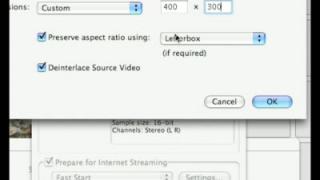
3:45 Step 7: Size (Your Video Dimensions)
4:18 NEW! Set your videos to 480W x 360H
5:32 Step 8: Sound/Audio
5:48 Step 9: Save Your File
5:54 Conclusion
5:54 Conclusion
How To Export Video Using iMovie
Link
Copy
Embed
Size:  x 
Copy


Powered by WellcomeMat